I have a physical store

An online store for your physical store: your shelf sells online too

The same products, the same register, the same location. You add a storefront that takes orders at any time, and customers come to you to pick them up.

With your existing register · Pickup at your location · Payment online or in store

Inventory

What's on the shelf is what your customer sees

With an ERP, stock quantities come in automatically. With just a register, you manage them in the admin, one number per product.

11:20 · At the counter

You sell the last travel mug

You connect your system as an app from the admin. When you make a sale at the register, the stock quantity on the site drops automatically.

14:32 · On the site

A customer orders glasses from the storefront

Once the order is paid, the stock quantity drops automatically, from 6 to 5.

19:00 · Closing time

You lock up. The storefront stays open

Whatever is left on the shelf stays on the site too.

23:14 · At night

An order comes in while your store is closed

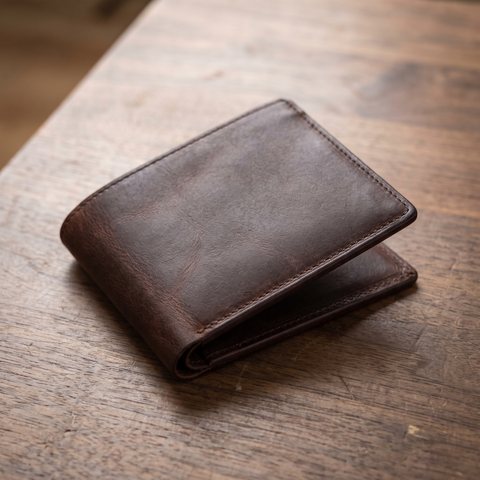
A customer buys a wallet and pays by card. The stock quantity drops from 12 to 11.

08:30 · Morning

You keep working the way you always have

You open up, and the numbers are already correct: the shelf, the admin, and the storefront all match.

View the systems

Scroll - you move the day along

Store pickup

An online order brings the customer to your door

Your store appears alongside couriers in Checkout. The customer selects it, pays online or in person, and comes to pick up the order.

Checkout · yourstore.bg The route to your store On your end · store and admin
  1. 01

    Store location page

    Address, opening hours, phone number, and map

  2. 02

    Pickup instead of courier shipping

    The customer selects your store from a list or on the map

  3. 03

    Pay in person

    The order stays pending until you mark it as paid

The counter

Your counter and website are one store

Orders placed by phone, by message, or at the counter go into the same list as online orders. The customer is in the same database. The product comes out of the same inventory.

  • On the website
  • By phone
  • By message
  • At the counter

One history for every customer, wherever they buy

Orders and returns

Before you go online

Questions everyone asks

01 / 06

Do I need an ERP to sell online

No. The store tracks one stock quantity per item, which you manage in the admin. Online orders reduce it automatically. After a sale at the counter, you update it manually or enter the order in the admin. An ERP comes in when manual tracking becomes too much work. You then connect it as an app.

02 / 06

How quickly does the site register a sale at the counter

It depends on where the stock quantity comes from. If you manage it in the admin, the storefront reflects it after you update it. If an ERP supplies it, updates follow its schedule: Micro.bg sends inventory and prices every 3 minutes, SelMatic every 4 hours, Barsy every 8 hours, PosMaster once a day, and Microinvest sends updates when something changes or when you run a sync. So when you have one unit left of a popular product, it helps to know your system's update schedule.

03 / 06

Can the online price differ from the in-store price

Yes. The online store has its own price for each product, and you decide what it is. That price is the same across all your locations. There is no separate price per location. If prices come from Microinvest, you choose which of its price groups goes online, so prices at the counter and on the site can differ.

04 / 06

Can customers see stock by location

On the storefront, customers see whether a product is in stock, not at which location. Stock is checked by location at Checkout: if the product is unavailable at the selected location, pickup there cannot be selected, and the customer chooses another location or shipping method.

05 / 06

How does payment in store work

The customer selects “Pay in store” at Checkout, and the order comes in as awaiting payment. No money goes through the platform: the customer pays at your location when they arrive, and you mark the order as paid. You can rename the method, set a minimum order amount, and offer it only during selected hours.

06 / 06

What document does the customer receive

The document your customer receives depends on how they pay. Here's what the platform does in each case.

The customer pays online by card. CloudCart issues a sales document with a unique number for each paid order. You open it as a PDF from the order history. It replaces the fiscal receipt under the alternative regime of Ordinance N-18.

The customer pays cash on delivery. The courier issues the receipt according to your agreement with them.

The customer requests an invoice. The invoice is issued from the order with your numbering and company details.

The month ends. The N-18 app in the admin creates a single XML file under Appendix 38 with the month's sales and reversals. You download it and submit it through the NRA (Bulgaria's National Revenue Agency) portal by the 15th.

The customer pays in store. Payment takes place at your location, not through the platform: the order stays pending until you mark it as paid. The platform is not a cash register. Counter sales stay with the cash register you already use.

Your accountant confirms whether your business qualifies for the alternative regime. Your store must be registered with the NRA, and card payments must go into your account. Invoices and N-18


Open your store online too

Tell us what you use at the counter: a cash register, an ERP or a notebook. We'll show you where to start.