CloudCart Create a store for €1Store for €1

For merchants with physical locations

Online store
for your physical store

One stock count for the register and the site: sell the last item at the counter and it disappears online too. The customer orders on the site and picks up in store.

With the register you already haveIn-store pickup0% commission

Already on CloudCart? Local Pickup is turned on from your store admin: Apps → Local Pickup.

/admin/apps/storesOpen Local Pickup in the admin →

Stock · T-shirt “Basic”, white, Mexample
Vitosha Blvd. store3 pcs
Mladost store5 pcs
The online store shows8 pcs
2:05 PM · sale at the Mladost register-1
The online store now shows7 pcs

Sample store. The register and the site draw from one stock count. No one orders an item that is not there.

€550Min sales over 12 months
5.5Morders over 12 months
1,500+stores
10 yearsin ecommerce

Three reasons to start now

CloudCart's zeros apply through Dec 31, 2026. And as always: 0% transaction fee on sales.

€1per month for the planThe first 3 months, for every plan from Baby to Unicorn. The discount applies automatically, no code needed.
€0for migrationOur team migrates your store from any platform, with a 24-month contract.
0%card feesWith CloudCart Pay through Dec 31, 2026: Visa, Mastercard, Apple Pay and Google Pay.

A day at the store

Same products, same register, same location. You add a storefront that takes orders at any hour.

  1. 11:20 AM · At the counterYou sell the last thermos. With inventory software, the count on the site drops by itself.
  2. 2:32 PM · From the siteA customer orders glasses and chooses to pick them up in store. Once the order is paid, the count drops.
  3. 11:14 PM · OvernightThe store is closed, but the storefront sells. A customer pays by card and the count drops from 12 to 11.
  4. 8:30 AM · MorningYou open and the numbers are already right: the shelf, the admin, and the site all show the same.

How the store and the site become one

Your register and inventory stay. The site starts seeing them.

The inventory software you already use is an app in the admin

You do not replace your register software. You install the app for your system and connect it. Stock, prices, and orders update on their own, depending on what the system supports.

  • Microinvest, Micro.bg, SelMatic, Barsy, PosMaster, Gensoft, and more (Bulgarian systems)
  • Products are matched by barcode or SKU
  • The online order reaches your inventory software for invoicing and accounting

Your system is not on the list? We build the connection for you on request, or your developer builds it through the API.

Registers and ERP · appsin the admin

The links lead to the admin sign-in, and each app is in Apps under its own name. The update pace is set by the system itself.

Without inventory software, you manage stock in the admin

If you work with a register only, stock is managed in the store admin, one number per product. The site shows it right after you change it.

  • Products → Inventory: all items in one table
  • Set a new count or add to the old one
  • A canceled or returned order puts the item back in stock

Where: in the store admin, Products → Inventory.

Stock · Products → Inventoryexample
Travel mug1
Cat Eye glasses · rose gold6
Butterfly glasses · amber3
Leather wallet12
Change logtime and source

Sample store. Every stock change stays in the product's log.

The customer orders online and stops by to pick it up

The Local Pickup app adds your locations to the store: address, hours, phone, and map. At checkout the customer picks a location and pays online or in store.

  • “Store pickup” delivery method and payment in store
  • A page with all locations and a map, with no design work on your side
  • Pickup is available only where the product is in stock

Where: in the admin, Apps → Local Pickup. There is no limit on the number of locations.

Store pickup · Order #1041example
Placedfrom a phone, 3:42 PM
Paymentcard, €64.90
Pickupfrom the Mladost store
Statusready for pickup

Sample order. Stock is reserved at the moment of payment.

A customer in Plovdiv sees the stock in Plovdiv

The Store Locations app tracks stock by warehouse and links it to geo zones. The customer enters an address and sees the stock of the warehouse that serves them.

  • Stock by warehouse for each variant
  • The order and shipment leave from the nearest warehouse
  • One price for all locations

Where: in the admin, Apps → Store Locations. You only need it if the customer must see the stock of a specific warehouse.

Stock by location · Store Locationsexample
Customer from Sofiasees the Sofia warehouse
Customer from Plovdivsees the Plovdiv warehouse
Mladost locationhours and map

Sample store. Warehouses are linked to geo zones and the customer sees the stock of their own.

Don't fall into these traps

The six things that make merchants with physical locations lose online sales. CloudCart has an answer for each.

Two separate stock countsWhat sold at the register still shows on the site, and the customer orders an item that is not there.
Manual copying every dayAn employee copies stock and prices between the two systems and makes mistakes.
“Replace your register software”A platform that wants you to replace the software at your locations.
Store pickup by phoneThe order gets lost between the site, the phone, and the location.
A site with no supportThe agency launches it and vanishes. There is no one to ask.
A percentage of online salesThe more the site sells, the more you pay.


CloudCart vs a separate site and register

CloudCartSite and register separately
Shared stock for the register and the siteAutomaticYou copy it by hand
Stock by location onlineThe site shows itThe customer calls to ask
Store pickupMethod at checkoutArranged by phone
Pay in storeIncludedNone
Register software connectionMicroinvest, Micro.bg, PosMaster, Barsy, and moreCustom development
A system that is not on the listWe build it for you on request, or your developer does it through the APINew development
Bulgarian couriersEcont, Speedy, BOX NOW, and moreDepends on the site
Transaction fee on sales0%Depends on the platform

The comparison describes how things usually are and depends on the plan and the setup.

The store and the site, connected

  1. Create your store€1/month for the first 3 months. Already a customer? Go to step 2.
  2. Connect the registerYou install the app for your system from the admin. Register only? Stock is in Products → Inventory.
  3. Add your locationsApps → Local Pickup: the address, hours, and map of each location.
  4. Check itSell a test item at the register and watch it disappear from the site.

Already on CloudCart? Local Pickup is turned on from your store admin: Apps → Local Pickup.

/admin/apps/storesOpen Local Pickup in the admin →

Connected to everything you work with

Couriers, banks, marketplaces and inventory software. You switch them on from the admin, no developer needed.

Couriers

Shipping labels, cash on delivery, offices and lockers from the admin.

EcontSpeedyBOX NOWSamedayEvropatPigeon ExpressPoshta MikMikNTC LogisticsELS LogisticGLS

Payments

The ways your customers pay.

CloudCart PayBoricaePaymyPOSFibankDSK BankPayseraPayPalStripeCash on deliveryBank transfer

Installments

The customer buys in installments and you get the full amount.

tbi bankDSK installmentsDSK 0%Fibank installmentsPB Personal FinanceIuteMokka

Marketplaces and comparison sites

One catalog, sales everywhere your customers shop.

eMAGOLXPazaruvajSravni.bgTrendoGlamiSkroutzTikTok ShopGlovo

Inventory, ERP and POS

Inventory, prices and orders move between your store and your software.

MicroinvestMicro.bgGensoftSelMaticBarsyR-KeeperZeronUniversumVersusColibriPOSMaster

Merchants who have already made the move

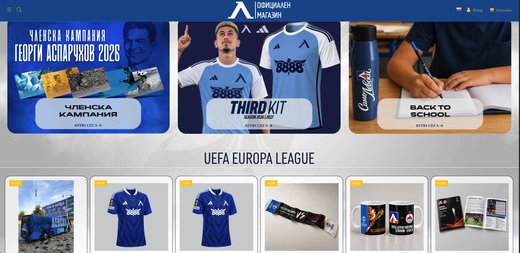
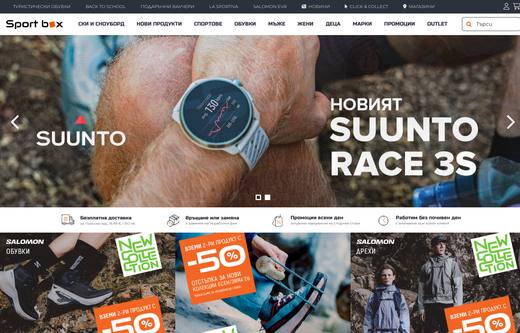
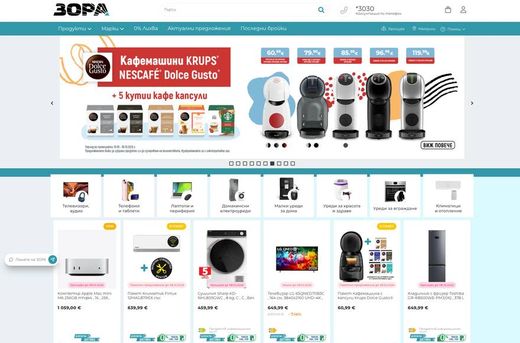
A retail chain, a sports brand, a football club, a pastry shop. See what they say and what their stores look like.

4,4
★★★★★on Google from 158 reviews

Hear from the owners themselves. Click a story to watch it.

Real stores. Open them and browse as a customer.

Some of the brands selling with CloudCart.

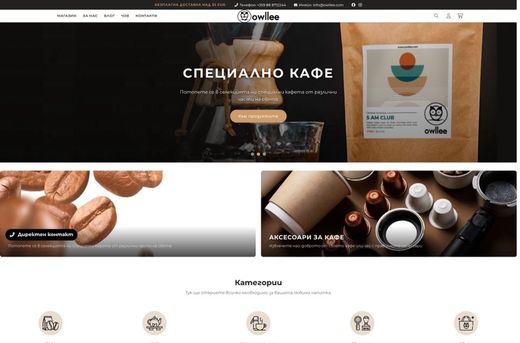
The CloudCart team at the Sofia office

A Bulgarian team with 10 years of ecommerce experience

Stores on CloudCart sold €550 million over the last 12 months. The team is based in Sofia, knows the market and stays with you after launch.

  • A team in Sofia
  • A dedicated point of contact
  • 10 years of experience
  • Honest recommendations

Or build your store with your AI assistant

Claude Code, ChatGPT Codex, Cursor, VS Code or Gemini CLI build your store step by step: products, categories, descriptions and settings. Write in English.

  1. Register your storeRegistration takes a minute, with the same offer.
  2. Get an access keyIn the admin: bottom-left menu → “PAT tokens” → new key.
  3. Paste the sentence into your assistantIt asks about your goal and guides you step by step. Give it the key and your store’s address.
How it works with each assistant →
The sentence for your AI assistant
Fetch and follow the instructions at https://raw.githubusercontent.com/cloudcart/ai-toolkit/main/prompt.md to set up my AI agent for CloudCart

The assistant will talk to you in your language.

Questions

Questions from merchants with physical locations

01 / 10

How do I build an online store for my physical store?

You create a store in CloudCart and connect your register or inventory software from the admin. Products, prices, and stock come from it, and when you sell the last item in store, it disappears online too.

02 / 10

Do I have to replace my register software?

No. Bulgarian systems such as Microinvest, Micro.bg, SelMatic, Barsy, PosMaster, and Gensoft are apps in the admin: you install and connect. If yours is not there, we build the connection for you on request, or your developer builds it through the API.

03 / 10

How fast does stock update after a sale at the register?

It depends on where the number comes from. If you manage it in the admin, the site shows it right after you change it. If inventory software supplies it, the pace is its own: Micro.bg every 3 minutes, SelMatic every 4 hours, Barsy every 8 hours, PosMaster once a day, and Microinvest on change or when you start the sync.

04 / 10

What happens when an item runs out at a location?

Pickup at that location cannot be selected. The customer can only choose a location where the product is in stock.

05 / 10

Can the customer pay in store?

Yes. Local Pickup adds payment in store. The customer can also pay online by card and just stop by to pick up the order.

06 / 10

Can the online price differ from the in-store price?

Yes. The online store has its own price for each product, the same for all your locations. If prices come from Microinvest, you choose which of its price groups goes online.

07 / 10

Can I also sell on social media and marketplaces?

Yes, from the same catalog and with the same stock: Facebook, Instagram, Google Shopping, eMAG, OLX, and more, with no separate listings.

08 / 10

How much does it cost?

The plan is €1 a month for the first 3 months, on every plan from Baby to Unicorn. There is no commission on sales, in store or online.

09 / 10

Will people find me on Google and in ChatGPT?

Yes. The store is set up for Google and AI search: llms.txt and structured data that ChatGPT, Gemini, and Google AI can read.

10 / 10

Who helps me after launch?

A Bulgarian team in Sofia, by phone and email.

The store and the site, with one stock count

Create your store for €1 a month for the first 3 months and connect the register you already use.